student Box Office

Learn more from here.

student Box Office

We will prepare the best articles for you to acquire knowledge.

student Box Office

We will help you always. Just follow our guidelines.

student Box Office

Come and join here to share the knowledge in latest Technologies.

student Box Office

Share your views with us. And update your knowledge.

Showing posts with label ASP.Net C#. Show all posts

May 30, 2012

Access Specifiers Or Access Modifiers in C#


In encapsulation, before creating any types you must always consider scope of the type or visibility of the type.  C# provides various number of keywords to decide the scope, those are private(default one), public, internal, protected and protected internal. If you create any type without these keywords, by default it will take as private.

Here we will discuss about each access specifier with an example. I created Class1.cs class which has several methods with the different access modifiers as shown below.

namespace AccessSpecifiers
{
    public class Class1
    {
        public void display1()
        {
            Console.WriteLine("public Access Specifier");
        }

        private void display2()
        {
            Console.WriteLine("Private Access Specifier");
        

        internal void display3()
        {
            Console.WriteLine("internal Access Specifier");
        

        protected void display4()
        {
            Console.WriteLine("protected Access Specifier");
        

        protected internal void display5()
        {
            Console.WriteLine("protected internal Access Specifier");
        }
  }
}

private Access Specifier or Modifier:

The scope of the private members is limited with in the Class or Structure in which they are defined. They are not accessible outside the Class or Structure.

In the attached example, we have display2() method which is defined as private in Access Specifiers project, Class1.cs class.

We tried to access this method in the Class2.cs class and Class3.cs class (which is derived from Class1.cs class). But it produces the error as AccessSpecifiers.Class1.display2() is inaccessible due to its protection level.

class Class2
{
        void display()
        {
            Class1 obj = new Class1();
            obj.display2(); //Error, because display2() is private
        }
}


class Class3:Class1
{
        void display()
        {
            display2(); //Error, because display2() is private
        }
}


public Access Specifier or Modifier:

Public members have no access restriction. You can access public members by creating object, in derived class and with in the assembly and in other assemblies also.

We have display1() method which is defined as public in AccessSpecifiers project, Class1.cs class.  We can access this method in Class2.cs class by creating object, in Class3.cs class which is derived from Class1.cs class and also in other assembly AccessSpecifiersTest also.

namespace AccessSpecifiers
{
    class Class2
    {
        void display()
        {
            Class1 obj = new Class1();
            obj.display1(); //No Error, because display1() public
        }
    }
}

namespace AccessSpecifiers
{
    class Class3:Class1
    {
        void display()
        {
            display1(); //No Error, because display1() public
        }
    }
}

In other assembly AccessSpecifiersTest,

namespace AccessSpecifiersTest
{
    class Program
    {
        static void Main(string[] args)
        {
            //try to access AccessSpecifier Assembly methods
            AccessSpecifiers.Class1 obj = new AccessSpecifiers.Class1();
            obj.display1(); //public method, No Error   
         }
    }
}


protected Access Specifier or Modifier:

You cannot access protected members directly i.e., you cannot access protected members by creating object. You can access protected memebers in derived class only.

We have display4() method which is defined as protected in AccessSpecifiers project, Class1.cs class.  We can access this method in Class3.cs class which is derived from Class1.cs class and elsewhere you cannot access this method.

namespace AccessSpecifiers
{
    class Class2
    {
        void display()
        {
            Class1 obj = new Class1();
            obj.display4(); //Error, because display4() is protected
        }
    }
}

namespace AccessSpecifiers
{
    class Class3:Class1
    {
        void display()
        {
            display4(); //No Error, because display4() is protected
        }
    }
}

namespace AccessSpecifiersTest
{
    class Program
    {
        static void Main(string[] args)
        {
            //try to access AccessSpecifier Assembly methods
            AccessSpecifiers.Class1 obj = new AccessSpecifiers.Class1();
            obj.display4();//Error, because display4() is protected
        }
    }
}


internal Access Specifier or Modifier:

Internal members are accessible with in the assembly only. You cannot access internal members outside of the assembly.

We have display3() method which is defined as internal in AccessSpecifiers project, Class1.cs class.  We can access this method in Class2.cs class by creating object, in Class3.cs class which is derived from Class1.cs class. Because Class2.cs and Class3.cs classes are in the same assembly AccessSpecifiers. You cannot access display3() method other assembly AccessSpecifiersTest, it produces compile time error.

namespace AccessSpecifiers
{
    class Class2
    {
        void display()
        {
            Class1 obj = new Class1();
            obj.display3(); //No Error, because display3() is internal
         }
    }
}

namespace AccessSpecifiers
{
    class Class3:Class1
    {
        void display()
        {
            display3(); //No Error, because display3() is internal
        }
    }
}


namespace AccessSpecifiersTest
{
    class Program
    {
        static void Main(string[] args)
        {
            //try to access AccessSpecifier Assembly methods
            AccessSpecifiers.Class1 obj = new AccessSpecifiers.Class1();
            obj.display3();//Error, because display3() is internal
        }
    }
}


protected internal Access Specifier or Modifier:

Protected internal scope is addition of protected and internal scope. That means protected internal members are accessible in the derived class as well as with in the assembly.

We have display5() method which is defined as protected internal in AccessSpecifiers project, Class1.cs class.  We can access this method in Class2.cs class by creating object, in Class3.cs class which is derived from Class1.cs class, but we cannot access in other assembly AccessSpecifiersTest.

namespace AccessSpecifiers
{
    class Class2
    {
        void display()
        {
            Class1 obj = new Class1();
            obj.display5(); //No Error, because display5() is protected                       internal
        }
    }
}

namespace AccessSpecifiers
{
    class Class3:Class1
    {
        void display()
        {
            display5(); //No Error, because display5() is protected internal
        }
    }
}

namespace AccessSpecifiersTest
{
    class Program
    {
        static void Main(string[] args)
        {
            //try to access AccessSpecifier Assembly methods
            AccessSpecifiers.Class1 obj = new AccessSpecifiers.Class1();
            obj.display5();//Error, because display5() is protected internal
        }
    }
}

May 21, 2012

No Java Required: Write Android Apps in C#


No Java Required: Write Android Apps in C#

XobotOS is a Xamarin-developed project that translated millions of lines of Java to C#.
Java is the underlying code for the Android OS. But one company has changed all that, ripping out most of the Java and replacing it with C#.
That means .NET developers can code in a familiar language and produce apps that leverage C#'s advantages, including speed increases.
It started as a skunkworks project for Xamarin. Xamarin's claim to fame is Mono, an open-source framework allowing Android and iOS apps to be built using C# running on top of Java. Now, with what the company calls the XobotOS Research Project, the Java layer has been removed via a "machine translation of Android from Java to C#," according to ablog post from Xamarin CTO Miguel de Icaza.

Building XobotOS involved converting more than a million lines of Java code into C#, de Icaza wrote. A tool called Sharpen was used to help in the translation, and the project resulted in an improved version of Sharpen, de Icaza says. Most of Androids layouts and controls, de Icaza says, have been converted, and to demonstrate, the post includes a Java-free screenshot of  XobotOS running on a Linux desktop.
In terms of speed improvements, the blog includes a bar chart of a benchmark from a simple binary tree implementation in Java and C#. The chart shows a huge increase in performance between the two languages.
Xamarin has made XobotOS available on github. de Icaza says that XobotOS won't be "a focus" going forward, as the company wants to put its efforts toward its core products, Mono for Android and MonoTouch.
One other possible benefit of using XobotOS for Android development is that it would eliminate the kind of potential legal entanglements that Google finds itself in with Oracle, the patent-holder for Java. Replacing Java with C# would, of course, inoculate developers from the clutches of Oracle's lawyers.

About the Author
 
Keith Ward is the editor in chief of Visual Studio Magazine. 

May 3, 2012

How to make ASP.NET GridView emit proper tags


I know I know, ASP.NET WebForms is a passe and MVC is the king of the ring, but if you, like me, still have to work with legacy WebForm components then more often than not you’ll need to use the GridView control. When using GridView control if you want to use jQuery and jQuery plugins to jazz up your grid, you’ll hit a wall because the GridView control emit straight <td> <tr> instead of the more ‘compliant’ <thead> <tr> <th> and <tbody> <tr> <td>
As a result most jQuery plugin’s don’t work. I was despairing at this thought when I came across this article on www.dotnetcurry.com
The article demonstrates tips and tricks with GridView, but it had the hidden gem of how to get the GridView to render <thead> tags. Recipe is simple, handle the GridView’s PreRender event and put the following code in
1if (myGridView.Rows.Count > 0)
2{
3 myGridView.UseAccessibleHeader = true;
4 myGridView.HeaderRow.TableSection = TableRowSection.TableHeader;
5}
With this done, the whole wide world of jQuery goodness opens up. In the following example I use the DataTables plug-in to add a nifty search functionality and frozen header and vertical scrolling.

Example

We will create a new ASP.NET web application and use the DataTables jQuery plugin to jazz up our grid view control.

Step 1 – Getting Started

Fire up Visual Studio (whichever version you have) and create a new ASP.NET Web Application
image

Step 2 – Finding a Data Source (ignore this and Step 3 if you already have a data source handy)

In Solution Explorer, right click on App_Data folder and select Add Existing Item. I have SQL Server compact edition installed which installs the NorthwindDB.sdf file in the following folder location
C:\Program Files (x86)\Microsoft SQL Server Compact Edition\v4.0\Samples\Northwind.sdf
If you don’t have Compact Edition 4.0 you can download it from here

Step 3 – Connecting to Northwind database

Bring up Server Explorer and double click on Northwind.sdf to connect to it. Change the header to something like “Products From Northwind Database” and remove the other default paragraphs.

Step 4 – Add the GridView

Double click on Default.aspx to open the designer. Switch to Split or Design mode and Drag and Drop the GridView control

Step 5 – Do the magic to render proper table tags

Change the Name of the gridview to jqDemoGridView. Add a PreRender event handler and place the above code in the event handler to ensure the GridView emits proper table tags in HTML.

Step 6 – Get the scripts

a. If you are using derivatives of Visual Studio 2010 your project should come with jQuery included by default under the Scripts folder. I got version 1.4.1 with my project. You can get the latest version from here and place it in your Scripts folder.
b. Next we will get the DataTables plugin scripts from here (~8Mb).
Download the zip file and extract it. Open Windows Explorer and navigate to the extracted folder. There should be three folders from the zip, examples, extras and media.
c. From the media folder select the images and js folder and press Ctrl+C to copy them
Go to Visual Studio, select the Scripts folder in Solution Explorer and press Ctrl+V to add the folders.
d. From the media\css folder select all the css files and paste it in Solution View’s Styles folder.
e. From the examples\example_support\themes\smoothness folder copy the jquery-ui-1.8.4.custom.css and the images folder. Paste is under Sytles folder
f. Exclude the jquery.dataTables.js, jquery.js and jquery.dataTables.min.js.gz files. The rest of the files are enough. (the .min.js version is minified meaning it doesn’t have any kind of whitespaces and reduced in size as much as possible. It’s not at all readable so if you want to go through the js to understand it, use the non-minified version) Your solution explorer should looks something like the following.
image

Step 7 – Connect to Data Source

I will connect to the above data using the Entity Data Source. You can select your own data connection mechanism. Basically the idea is to get the GridView populated with enough data that requires a vertical scrollbar. If you are using SQL CE 4.0 like me follow along.
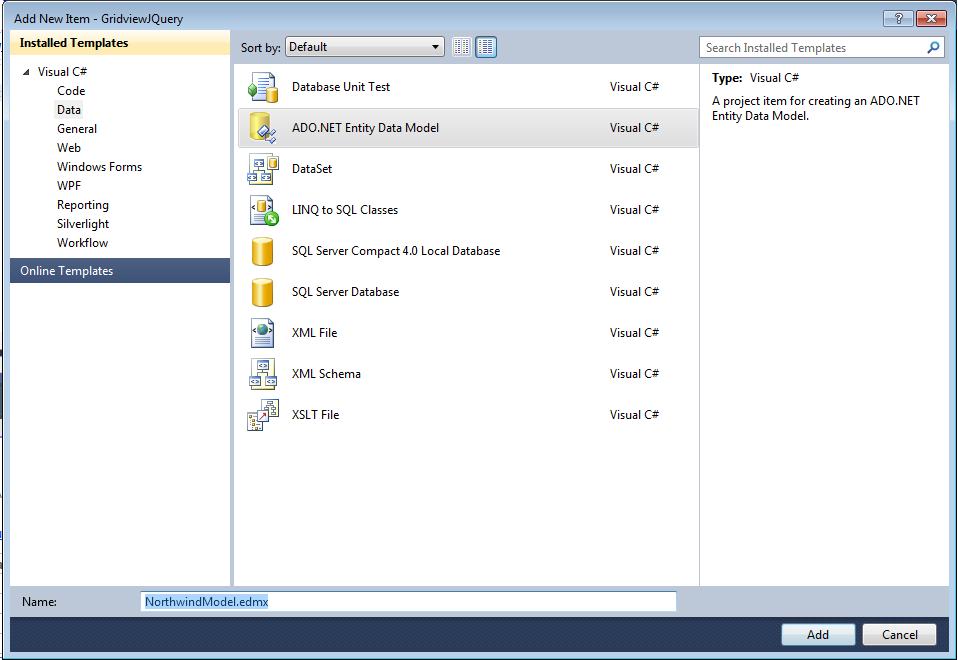
a. Right Click on Solution Explorer and Select Add New Item. Select Data from the Installed Templates and ADO.Net Entity Data Model. Name it NorthwindModel.edmx
image
b. Select the default ‘Generate from Database’ and click Next.
image
c. If Northwind.sdf connection was open it will select it by default and the next screen should look something like the following.
image
d. The Wizard will connect to the DB and load up the schema. Select all the tables and click Finish.
image
e. Save solution and do a ‘Build All’.

Step 7 – Tie the GridView to the data source

a. In the designer click on the GridView smart tag and bring up the Choose Data Source Dialog
image
b. Click Ok to bring up the Configure ObjectContext wizard. It should select the NorthwindEntites connection it created while building the data source by default. If you named it differently in Step 6.c. select the name that you gave it. The DefaultContainerName will come up automatically once you select the Named Connection. Click Next.
image
c. Select the EntitySetName (table) that you want to show. I’ve selected the Products table and opted to show all the columns. You can pick and choose. As of now we are not doing any Inserts/Updates or Deletes, keep them unchecked. Click Finish
image
If you run your application at this point you will see the grid populated with data from the products table. Just for kicks right click on the browser to bring up source, you will see the <thread><tr><th> rendering for the table in the final HTML. So far so good.

Step 8 – Bring in the jQuery Goodies

Here comes the fun part now. Let’s tie up our grid with jQuery and datatables goodness.
a. Open Site.Master and drag and drop the demo_table_jui.css from the Scripts\css folder on to the header area
b. Open the Default.aspx and in the BodyContent area, drop the jQuery script file and the jquery.dataTables.min.js file.
1<script src="Scripts/jquery-1.4.1.min.js" type="text/javascript"></script>
2<script src="Scripts/js/jquery.dataTables.min.js" type="text/javascript"></script>
c. Add the following script to apply the plugin to the GridView
01<script type="text/javascript" charset="utf-8">
02 $(document).ready(function ()
03 {
04   $('#<%= jqDemoGridView.ClientID %>').dataTable({
05           "bJQueryUI": true,
06           "bPaginate": false,
07           "bLengthChange": false,
08           "bFilter": true,
09           "bSort": true,
10           "bAutoWidth": false,
11           "sScrollY": 300,
12           "sScrollX": "100%",
13           "sScrollXInner": "110%"
14      });
15 });
16</script>
The dataTable method is taking an object as a parameter. The object is defined in JSON. Let’s look at each parameter and try to get what it is
i. bJqueryUI : A boolean parameter indicating if JqueryUI should be used to beautify the grid. We set it to true
ii. bPaginate: A boolean parameter indicating if pagination should be enabled. We set it to false to force vertical scrollbars
iii. bLengthChange: A boolean parameter (not sure what it does, it’s set to false in our code).
iv. bFilter: A boolean parameter indicating if Filtering should be enabled. We set it to true.
v. bSort: A boolean parameter indicating if Sorting should be enabled. We set it to true.
vi. bAutoWidth: A boolean parameter indicating if datatables should try to set the width of the columns. We set it to false
vii. sScrollY: A integer parameter indicating the fixed height of the table. Scrolling is enabled after rows of data exceed this height.
viii. sScrollX and sScrollXInner: Parameters that help enable horizontal scrolling.
For a complete reference to possible parameters refer to DataTables’ excellent documentation on their site. A quick reference guide is available here
Clean up the Default.aspx by removing the default messages and run the application.
Lo and behold!
image

Step 9 – Playing around with the ‘jQuerified Grid’

a. Type in Anton in the search text box and see the grid filter data down to 2 rows of data showing Chef Anton
b. Click on any of the headers and watch the grid get sorted without any postback (entirely on the client side)
c. Scroll horizontally and vertically and see how the headers remain aligned.

In Conclusion

We started off with the small goal of figuring out how to emit thead for a GridView control and ended up applying a jQuery plugin to add rich client side functionality thanks to the proper rendering of thead and tbody tags. This opens up a vast playground for jQuery enabled ASP.NET sites with interactive GridView. Notice we haven’t used Microsoft’s Ajax Control Tool Kit anywhere. Though I have used DataTables and jquery and Ajax Control Toolkit all in the same page and they do work together. But that’s another story. I am trying to make a clean break from ACT and do things in jQuery only. Hopefully sometime soon, I’ll be able to demonstrate use of more jQuery plugins with more functionality like Edit/Update/Delete from the grid view control.
The entire source code including the Northwind.sdf file is uploaded here (hosted on SkyDrive – 714KB download size).
This code uses DataTables.net which is released under GPL v2. Please respect open source licensing model. Whatever little I have written is made available As Is.
Have fun coding!

Share

Twitter Delicious Facebook Digg Stumbleupon Favorites More