student Box Office

Learn more from here.

student Box Office

We will prepare the best articles for you to acquire knowledge.

student Box Office

We will help you always. Just follow our guidelines.

student Box Office

Come and join here to share the knowledge in latest Technologies.

student Box Office

Share your views with us. And update your knowledge.

Showing posts with label Windows. Show all posts

Feb 17, 2012

'msnNOW' a new trend tracking service by MSN

Microsoft is hooking up MSN.com with a hipper sidekick to broaden its appeal and stay on top of the Internet's hottest topics. 

The trend-tracking service, called "msnNOW," tunes into the buzz by sifting through millions of Internet searches and links circulating among the hordes on Facebook and Twitter. The chatter is then distilled into the equivalent of a digital water cooler _ a place where people can go to keep in touch without taking up a lot of their time. 

After months of development, the new feature debuts Thursday at http://now.msn.com. 

The service is primarily aimed at university-age teenagers and young adults who are increasingly relying on smartphones and other mobile devices to remain plugged into what everyone is talking about from one hour to the next. 

It's an ``information-snacking'' addiction that msnNOW is looking to feed with a smorgasbord of morsels served up a team of about 20 editors who will write 100-word summaries of the stories driving online conversations, said Bob Visse, MSN's general manager. 

Although it's tailor made for people on the go, msnNOW isn't offering an app for smartphones or computer tablets. It can be reached on all mobile Web browsers. The service also includes tools to make it easy to share on Facebook, Twitter and email. 

Taking the Internet's pulse isn't new. The main page on Yahoo Inc.'s website has highlighted the top trends for years and Internet search leader Google Inc. calls out the top queries each day. Twitter regularly updates its rankings of the most-tweeted topics. 

But MSN believes its new service will prove to be even more effective because it is drawing upon Microsoft Corp.'s expertise in data management and relying on human editors to ensure the real-time site is more compelling than a list of words and links. 

Facebook Inc. and Twitter also have negotiated deals that make more of their data available to Microsoft's Bing search engine than to Google, but msnNOW isn't relying on that privileged access, Visse said. 

Instead, msnNOW is conducting its analysis through the public entryways that Facebook and Twitter offers to all websites. MsnNOW is also leaning on BreakingNews.com, a part of MSNBC that also pores through a variety of social media to find interesting stories as they unfold. 

MsnNOW's reliance on Bing to monitor online search activity could be a drawback because it processes far fewer requests than Google. But Bing is picking up more cues now that it's powering Yahoo's search engine as part of a 10-year partnership. Combined, Bing and Yahoo have a roughly 30 percent share of U.S. search volume compared to 66 percent at Google. 

Bing's second-banana status in search is a big reason why Microsoft's online division has been a financial albatross. The software maker's online operations have lost about $8 billion since June 2008. 

MSN.com remains one of the Internet's top destinations with about 520 million users. In comparison Facebook boasts 845 million users, Yahoo has about 700 million and Twitter has more than 100 million. 

Feb 9, 2012

10 ways Windows 8 tablets can take on the iPad: In Depth


In Depth: 10 ways Windows 8 tablets can take on the iPad
Are you excited about Windows 8 tablets? We are.
Microsoft's latest Windows is a really attractive OS, and the tablets and hybrids we've seen so far are pretty impressive.
In a market where too many firms' strategy is simply "copy Apple", Microsoft is prepared to - yes! - Think Different.
Here are ten ways Windows 8 tablets could compete with the iPad 3.

1. Corporate customers

While many people do use their iPads for work, Apple hasn't explicitly targeted the big corporate market - and that's a huge business that Microsoft knows very well. Tablets that securely connect to corporate systems could be a big win for Microsoft here.

2. New Office

Microsoft Office remains Windows' killer app, especially in the business market - one reason Microsoft's own Tablet PC didn't succeed was because Office compatibility was "sabotaged" - so you can be sure that Office will be on both Intel and ARM-powered tablets. It'll be interesting to see whether Microsoft takes the opportunity to completely transform the Office UI for the ARM version: Office Metro-style, anyone?

3. Dual-mode machines

The iPad is very, very good at what it does, and what it does doesn't include being a desktop device. Microsoft thinks there's an opportunity there. Fancy a tablet that's finger-flipping good until you dock it, at which point it becomes a "proper" Windows PC with am OS designed for your keyboard and mouse or trackpad? We do, and we really hope Microsoft can make it work elegantly. Windows tablets with split personalities could be a lot of fun, not to mention seriously useful - as would...

4. Hybrid tablets

The combination of a dual-mode OS with dual-mode hardware - think Asus Eee Pad Transformer Prime or Lenovo IdeaPad Yoga could be very interesting indeed. Tablets that effortlessly switch between work and play modes could turn out to be the electronic equivalent of daytime to evening workwear.
IdeaPad yoga
TWICE AS NICE: Lenovo's IdeaPad Yoga is a tablet that transforms into a notebook, "like the Tablet PC but good"

5. Mega Metro

Metro is Microsoft's newest, whooshiest interface, and we like it a lot. We're not alone: pretty much everybody who uses Metro likes Metro, and we reckon that if everything else - hardware, app selection, price and so on - were equal, some people would choose a Windows tablet over an Apple one because they prefer Metro to iOS.

6. SkyDrive

Microsoft's vision for cloud-based sharing is very ambitious: your Windows ID will bring your stuff and your settings to whatever device you happen to be on, whether that's a tablet, a PC, an Xbox or something else. That's not just music: the goal is what Microsoft describes as "all your content. Anywhere."
SkyDrive
CLOUD ATLAS: Microsoft's SkyDrive puts cloud storage, synching and sharing at the heart of Windows

7. Beaming between devices

Microsoft is reportedly working on "beaming" between Windows devices for Windows 8 and Windows Phone 8, so for example you'll be able to beam content from your Windows 8 tablet to your PC or phone over whatever wireless connection happens to be present - Bluetooth, Wi-Fi Direct or NFC - without any fuss. That's the kind of thing that makes people say "wow" and reach for their credit cards.

8. Side-by-side apps

The iPad's single-minded focus on the app you're using is usually a great thing, but sometimes you want to do two things at once - such as read what's in one application while you write in another. Provided the screen's big enough, Windows 8 will let you see two apps simultaneously.

9. Nokia tablets

No disrespect to Microsoft's many hardware partners, but Nokia's the one we're really interested in when it comes to designing exciting tablets: the Finnish firm is famed for its hardware, and we're getting some tantalising hints of interesting new models, possibly coming as early as this summer.

10. A wider choice

It's probably safe to say that nobody can make iPad-spec tablets that match Apple's quality, price tag and enormous profit margins, but then not everybody wants an iPad. As we've seen with devices from the likes of Asus and Amazon, there's plenty of room in the market for devices that don't just ape Apple.

Microsoft may remove iconic 'start button' in Windows 8

Microsoft's iconic start button, which was introduced in Windows 95, is likely to be removed in the software firm's upcoming Windows 8 version, according to a report. 

The start button evolved to become the operating system's 'launchpad', offering access to software, files and search functions. 

According to leaked screenshots from the tech site, The Verge, earlier test versions of Windows 8 had flattened the recognisable 'orb', but the new build removes it altogether. 

"Fear not though, the start button functionality isn't as dead as it seems," The Verge reported. 

According to the site, the button itself might be absent, but the functions can still be accessed via a 'hot corner' designed to work equally well with touch screens or computer mice, The Daily Mail reports. 

"We have confirmed with sources close to Microsoft's Windows 8 development that a hot corner has replaced the Start button orb," the site said. 

"A thumbnail-like user interface will appear in Metro or desktop mode, providing a consistent way to access the Windows desktop and Start Screen in Windows 8 regardless of touch or mouse input," it added. 

Microsoft has not announced a release date for the new operating system, built to work with touchscreens as well as on conventional PCs, but it is widely expected to be released in the second half of 2012.

Dec 16, 2011

Microsoft Unveils Bluetooth Keyboard for iPad, Mobile Devices


Microsoft has released a full-size Bluetooth keyboard specifically aimed at the mobile market for devices like the iPad and Android tablets.

The Mobile Keyboard 5000 has a comfort curve, which angles your arms and wrists to type in a natural position (check out the video below for more information). It's a full-size keyboard and measures just 0.62 inches thick. It's slightly wider than a standard 13.3-inch notebook (13.9-inches), so it makes for an easy travel companion. It has a simple design, and looks like a spitting image of the Mobile Keyboard 6000 (sans numeric keypad). It has a matte black plastic finish with a glossy plastic line across the top with a white underside.

Dec 14, 2011

Microsoft may buy Nokia in early 2012


Microsoft may buy Nokia in early 2012
Nokia may well have a new owner by this time next year, if the banking folk over at Danske Bank are to be believed – they reckon Microsoft will scoop up the Finnish phone manufacturer in the first half of 2012.
The Nokia/Microsoft buyout chatter has been rife ever since the two companies hopped into bed together on Windows Phone, and it hasn't hurt Nokia – its share price slunk up by more than 3 per cent thanks to Danske Bank's speculation.
Stephen Elop, Nokia's current CEO, joined the company from Microsoft which leads some people to suspect that he's been sent in specifically to facilitate the sale of the handset arm.

Yes no maybe

The Finnish company isn't having any of it though; "We put these rumours to rest a long time ago," said Doug Dawson from the company, but it wouldn't be the first time a company has said one thing and done another.
Will Microsoft buy Nokia? We don't know, but we definitely wouldn't rule it out; after all, Google's in the process of buying Motorola and Apple already makes its own iPhone hardware.

Dec 12, 2011

Nokia bets big on Lumia smartphones


Finnish handset major Nokia said it is eyeing the leadership position in the smartphone segment with the launch of its Lumia series.

"We are positioning it (Lumia) as more than a smartphone. This will help us to achieve leadership position," Nokia India Director and Head (Smart devices) Vipul Mehrotra told reporters.

The two devices, Lumia 800 and Lumia 710, launched last month are the first devices from the handset major's partnership with software major Microsoft.

The newly launched Nokia phones are priced at around Rs 29,999 and Rs 19,999, respectively.

Asked about the company's target customers for their new smartphone series Lumia, Mehrotra said, "I cannot give you specific numbers, but (the figure) is significant."

Stating that there was "significant" number of youth, who prefer to buy such mobile phones, he said the new phones are being shipped to India from Europe and will be available in a few days.

"They are being shipped to India from Europe. We expect them to be out in the next few days," he said, adding the phones would be available across its 5,000 retailers.

The Nokia Lumia 800 is a high-end device that comes with a 8 megapixel camera with dual LED flash, and has 16 GB internal user memory and 512 MB programme memory.

The Lumia 710, has a 5 megapixel camera with LED flash, 8 GB storage capacity with 512 MB RAM and comes with exchangeable back covers.

Both touchscreen devices run on Windows Phone 7.5 'Mango Operating System'

Dec 8, 2011

Microsoft unveils new CRM version with built-in social network


Image
Software giant Microsoft today launched the new version of its customer relationship management solution 'CRM R7 2011' in India, with integrated social networking capabilities. 

"CRM R7 2011 integrates social capabilities into Microsoft Dynamics CRM and further strengthens service and marketing processes for businesses. 

"Its integration with Office 365 makes the value proposition for customers even more compelling," Microsoft Dynamics India Group Director Subhomoy Sengupta told reporters here. 

CRM solutions help companies manage interactions with their customers, clients and sales prospects. 

With the social feature integrated, employees within an organisation would be able to interact real-time, strengthening lead generation and accelerating customer and influencer outreach, Sengupta said. 

Micro-blogging will help users follow important real-time business events and activities through social media. 

The software is also accessible through the Windows 7 phone and cloud. 

"The new CRM update delivers social capabilities allowing our customers to build more productive relationships. The social productivity service reinforces our commitment to deliver familiar, connected and intelligent experiences," he said. 

Microsoft Dynamics recently crossed 2,000 customer milestone in India. Some of its customers includeDhanuka Agritech Ltd, Dr Lal PathLabs, Sharda Motor Industries, Harrison Malayalam, Tyroo Media and Mangalam Electronics and Aegon Religare.

Nov 26, 2011

Windows 8 Will Bring Personal Cloud to Billions, Says Microsoft


 The next version of Microsoft's still dominant PC operating system, Windows 8, 'represents an incredible opportunity to bring the benefits of the personal cloud to billions of PC users.' That's according to a blog post written by the Group Program Managers for SkyDrive, Microsoft's consumer cloud product.
When it was launched back in August 2007, SkyDrive was described as 'a personal 'harddrive' on the internet'. It's now a major player in the consumer cloud market, competing with other big guns like Apple's iCloud and Amazon Cloud Drive. Also SkyDrive competes with innovative startups like Dropbox and SugarSync. The Microsoft blog post presents some statistics about the consumer cloud market, along with big claims for its future.
To help define the market, Microsoft's Omar Shahine and Mike Torres outlined three distinct categories of personal cloud solutions:
  1. File clouds; using the traditional file and folder structure. Examples: SkyDrive, Dropbox
  2. Device clouds; 'A device-centric view of cloud storage 'hides' the folders from you.' Example: iCloud
  3. App clouds; 'they fully embrace the cloud [and] can enable new ways to collaborate, organize, and share.' Examples: Google Docs, Evernote
That's a good way to break down the market, although you could argue that the first two categories will eventually converge.
According to Microsoft, mainstream users are 'just starting' to use personal cloud products. Its own study, based on 'an anonymous panel of MS customers,' has 22% of people storing their photos online and 1% storing documents online. One suspects the figures would have been significantly higher if the panel had been comprised of Google Docs users. Microsoft customers are more likely than most to be still reliant on desktop software. Even so, I'm rather surprised at how low the online document storage figure is.
Microsoft also polled three groups of what it calls power users: college students, gadget fans, and photo enthusiasts. One statistic mentioned in the blog post is that 'over 70% of Dropbox users also use Google Docs.' Microsoft claims that 'using these different tools can lead to formatting loss, extra steps and versions, or just confusion, since each tool has its own limitations.' Which apparently is where Microsoft's SkyDrive comes in: presto, it solves all of that confusion. Google would argue that users should just use Google Docs for all of their documentation needs, which would also solve the confusion.
Frankly none of the above study results are very convincing, given that Microsoft was polling Microsoft users. The statistics that I was impressed by were SkyDrive's own usage numbers:
  1. How many people are storing content on SkyDrive every month - 17M (October 2011)
  2. How much content are they uploading and sharing every month - 360M files (October 2011)
  3. How many devices connect to SkyDrive every month - 5M devices (October 2011)

How Does SkyDrive Compare to Other Offerings?

SkyDrive offers 25GB of free personal storage, with a limit of 100MB per individual file. That's a lot more storage than iCloud, which only offers 5GB of free storage. However the iCloud free storage limit doesn't include your photos or purchased music, apps, books, and TV shows.
So a big benefit of SkyDrive is the generous amount of free storage. However, as with many Microsoft online products, it's not a complete consumer cloud solution. There is also something called Windows Live Mesh, which syncs files between devices. The two products, SkyDrive and Windows Live Mesh, exist side by side. That's confusing for the consumer.
The bottom line though is that if you use mostly Windows devices (e.g. PC, tablet, smartphone), then SkyDrive is probably going to be a great solution for you. It's already being integrated into Windows Phone. If you use mostly Apple products, then iCloud is probably your best bet.
Or you can use an OS-independent service like Amazon Cloud Drive or Dropbox, products which often offer more functionality. As RWW Channels Editor David Strom wrote in a product comparison mid-year, neither iCloud or SkyDrive 'is anywhere near what a cloud storage provider such as Box.net or Dropbox.com can provide in terms of features.'
It's unclear what impact Windows 8 will end up having on the evolution of SkyDrive, but it's significant that Microsoft is so bullish on the consumer cloud. After all, Windows is the epitome of the desktop computing paradigm.

Nov 18, 2011

Windows 8 Will Make Automatic Updates Far Less Painful


Microsoft is re-architecting the process for automatic updates in Windows 8, with a focus on minimizing restarts and reducing interruptions.
Windows Updates have sometimes been a pain point for users. The update pop-ups can interrupt a movie or a video game, and the automatic restarts can result in lost data or confused users.
Microsoft President of the Windows and Windows Live Division Steven Sinofsky explains in a blog post that Microsoft had three goals with Windows 8 when it designed the new automatic update system. 1) It had to minimize restarts and be more predictable, 2) automatic updates needed to be less intrusive, and 3) updates to the PC ecosystem still had to be delivered in a secure and timely manner.
“The challenge we faced was to find the balance between updating with speed and giving notice to the user for upcoming restarts,” Sinofsky states. “Clearly, updating and securing the PC before vulnerabilities can be exploited is just as important as it ever was. However, we also want to deliver a better experience around handling restarts and avoiding data loss without compromising our goal of timely updating.”
The result is a revamped Windows Update for the next version of Microsoft’s flagship operating system. The new updating system now consolidates restarts into monthly cycles, timed for Microsoft’s monthly security release on the second Tuesday of every month. The sole exception is for “critical” security updates like Blaster worms.
 “With this improvement, it does not matter when updates that require restarts are released in a month, since these restarts will wait till the security release,” Sinofsky notes in the blog post.
Windows 8 has also changed the update notification system. Notifications appear on the login screen and persist for three days — a timeframe chosen because the majority of WIndows updates occur in that time. The notification, which appears in the bottom-right part of the screen, gives users several days to prepare for the restart or initiate it on their own with the “Update and shutdown” option.
Automatic restarts don’t occur on a hard timeframe, though. If there is a chance of losing user data, Windows Update will hold back until work has been saved. The familiar update pop-ups don’t appear if you are doing something that takes up the entire screen, such as playing a video game or watching a movie. IT administrators also have the ability to prevent auto-restarts, just as they currently do with Windows 7.
Overall, it’s a wave of nice changes that improve the user experience. I’ve had those annoying pop-ups ruin a perfectly good movie night, and it’s nice to know that the next generation of Windows is going to be a little more polite about needing an update.

Nov 11, 2011

Windows 7 Check Disk for Consistency


Every file on a computer can be damaged, corrupted, or otherwise compromised. When you run the disk consistency check you are running a test to evaluate the integrity of the files themselves and the file structure on the partition. This is a fast and painless way to recover or fix files.

Problems With Files

Because of the mechanics of a disk drive – that it is round and rotates – there are physical reasons why the files may not be 100 percent accurate.
The operating system that reads and writes files to disk uses the "first come, first serve" approach. That means that when it first writes a file to the disk, if it is empty, it stores the files in segments in a continuous fashion. That is easy to see. When a command is given to read a file, the segment sequence is also easy to operate. But as you add files, the sectors where the files are stored do not all get filled.
Sometimes the files are smaller than the sectors, so they leave empty space. Sometimes they are bigger than a sector, so they spill over into other sectors. So, what happens is that a file may be broken up into segments scattered around the disk drive; a segment here, three segments there, another segment in a different track 300 segments away and so on.
This means that the files can become scattered and disorganized. Reading them can take longer because the operating system must join the segments together in order to work properly. The more disorganized and scattered the files are, the longer it will take to read them. The indexes that keep track of the segments may become damaged or compromised. This is where disk checking can help.

Windows 7 Check Disk for Consistency

Check disk for consistency can involve several problems.
The CHKDSK identifies certain items concerning your drive, the amount of space used, and the amount of space still available. It also looks at things like bad sectors, areas of your hard drive that have minor defects, and those that should be marked as unusual.
Another area that can cause a problem are lost chains. If there is a power outage, or a sudden close of a file with out properly saving it, you could get a "lost chain." Because typically an operating system will know where a file begins, but may not know where it ends.
Allocation units are the smallest units in which to store a file. If a file is 52 bytes in size and the allocation unit is 2048, the file will use up the entire unit, even if it does not need it.
Index files are the files that keep track of the addresses of the file as they reside on the hard disk. Sometimes the index is not kept up to date.

How to Run Disk Check in Windows 7

If you want to run Check Disk or chkdsk in Windows 7 to check a selected hard disk for file system errors and bad sectors here are the steps you need to follow.
1. Click the Start Menu and click the Computer button.
2. When the drives appear, right click the disk drive that you want to examine, and click on Properties.
Computer Tools
3. Click on the Tools tab, then click on the Check now button under Error-checking.
Tools
The following screen will appear.
Start Or Cancel
You are now ready to begin the disk checking.
Reschedule
At this point you can continue the operation at reboot, or cancel.
Now the next steps are the ones you can perform.
4. To Only Scan the Drive for Errors:
  • Leave both check boxes empty and click on the Start button.
5. To Only Scan and Attempt Recovery of Bad Sectors:
  • Uncheck the Automatically fix file system errors box.
  • Check the box that points to: scan for and attempt recovery of bad sectors.
6. If you Only want to Scan and Automatically Attempt to Fix Errors:
  • First check the Automatically fix file system errors box.
  • Then uncheck the box that performs a scan for bad sectors and attempts to recover them.
7. If you want to perform the Scan and automatically attempt to Fix Errors and Recover Bad Sectors:
  • Check the Automatically fix file system errors box.
  • Also Check the box to scan for and attempt the recovery of bad sectors.
8. Finally you are ready to start so click on the Start button.
9. Note also that if the selected hard drive is not in operation, then you will see the check disk program start checking the disk now.

Oct 29, 2011

Nokia CEO Sees 'Broader Opportunity' with Windows 8, Hints at Tablets


In a brief interview with This Is My Next, Nokia CEO (and mole for Microsoft, clearly) Stephen Elop hinted strongly at the potential for a Nokia-built Windows 8 tablet. While his statement was, strictly speaking, more of a dodge, it’s clear that this is something they’re at least thinking about.
When asked about its role as a consumer electronics brand, Elop explained:
The user experience of Windows 8 is essentially a supercharged version of the Nokia Lumia experience that you saw on stage today. And you see the parallels and opportunity for commonality from a user perspective. You say wow, this is more than just smartphones, there’s a broader opportunity here. And clearly we see that broader opportunity as well, without specifically commenting on what that may mean in the future.

Oct 27, 2011

Accidentally deleted a file? Ways to get back


It only takes a moment of carelessness to permanently delete important data from your PC. But don't worry, you may still be able to recover most of it, if you stop using your-PC immediately and use data recovery software. When a file is deleted, even from inside the Recycle Bin, it doesn't actually vanish from the hard drive. 


Instead, the computer merely changes the file's properties to make it invisible to the user. The file truly gets deleted only when the operating systemoverwrites fresh data to that space. You can try to recover the deleted files using free software. 


MiniTool Power Data Recovery 


This is a versatile software. It can not only recover the deleted files, but also help you save data from damaged partitions, pen drives, SD cards and CDs. MiniTool puts the retrieved files in folders, but you will have to go through several folders, Lost Files and Desktop, for example, before you find the actual files you were looking for. Once you have found the files, just click "save files" to get your data back. www.powerdatarecovery.com 


Recuva 


This lacks the advanced features of Mini-Tool , but one advantage of using Recuva is that you can see a preview before saving the retrieved files. This is handy because the computer often changes the names of deleted files to something like $ABC.MP3. www.piriform.com/recuva 


Glary Undelete 


In our tests, this was the slowest of the three. But one good feature is its ability to home in on the full name of the deleted files. This makes finding the right files a lot easier. www.glarysoft.com/products/ utilities/glary-undelete/

Oct 11, 2011

App review: SlimDrivers for Windows

artical Picture
Windows functionality and stability depends a lot on the software drivers that integrate the hardware components with the operating system. Manufacturers release updated drivers for their components on a regular basis, however it is not easy to keep a track of them. SlimDrivers takes care of this tedious task for you.

The application first scans your computer's hardware and then checks online for available updated drivers. If updated drivers are available, it asks you to select which ones you want and then downloads the setup files.

The application can also backup all existing drivers on your system to an external drive - for easy re-installation and rollback in case the system crashes. You can schedule the app to download updates on a specific day and time as per your convenience.

Sep 19, 2011

19 Tips for Windows 7 need to know

After installing a new OS, most people just jump right in and start driving it through all their favorite applications and games. Makes sense, right? The operating system, after all, should be a background player in the computing experience-a means to an end, with the end being web surfing, content editing, and wanton destruction in the first-person shooter of one's choice.
The problem, however, is that most people, even a lot of self-described power users, never take the time to really tune the new OS, exploring its menus and setting up the interface for the fastest, most convenient operation based on personal preferences. And as operating systems offer more and more user controls, it's the curious, performance-minded enthusiast who has the most to gain from tuning an OS to his or her liking.It's been about six months since Windows 7 hit the market, so we figure most of our readers have made their upgrades. For those who've made that jump, we present a bottle of our favorite Windows 7 tips, each designed to help you extract the very last bits of convenience and GUI-navigating performance from your own personal dream machine. And if you haven't yet upgraded to Win7, we trust you will after reading this article, as its core features-let alone its actual Lab-benchmarked performance-kicks Vista and XP ass.
We close out our tuning session with a tip designed to supercharge the process of installing the OS. By loading Windows 7 onto a USB key, and making that key a bootable drive, you can do an end-run around slow optical-drive technology and install your OS in (pardon the pun) a flash.

It's time to get started. Park your computer, but don't shut down. This is one PC tune-up that can only be done with your engine running.

Keyboard Shortcuts for Committed Mouse Abolitionists
Let's kick off this power-user party with keyboard shortcuts-tricks every enthusiast should memorize when mastering a new OS. We're confident the following time-saving keystrokes will save you precious neural processing cycles, and make your mouse jealous with neglect.


Alt + P


In Windows Explorer, this shortcut activates a preview pane of your selected file, be it an image, sound, or video document. This panel is great for previewing images in your photos directory, obviating the need for fancier third-party software.
Windows + Up and Windows + Down
If a window isn't maximized, pressing the Windows + Up arrow key will make it fill your entire screen. Windows + Down arrow will minimize that active window.


Windows + Shift + Up and Windows + Shift+Down

Hitting these three keys will vertically stretch an active window to the maximum desktop height (the width of the window, however, will stay the same). Pressing Windows + Shift+ Down will restore the window to its previous dimensions.

Windows + + and Windows + -
Pressing the Windows button with either the plus or minus key activates the Magnifier, letting you zoom in on the entire desktop or open a rectangular magnifying lens to zoom in on (and out of) parts of your screen. You can also customize the Magnifier to follow your mouse pointer or keyboard cursor.

Windows + Left and Windows + Right
These two shortcuts will make your active window fill up exactly one half of your screen-depending on which arrow key you use. And once a window is fixed to one side of the screen, you can repeat the shortcut with the same arrow key to flip it to the other side.
Windows + Home This shortcut minimizes every open window on your desktop except the active window. Pressing this shortcut again restores all the minimized windows.Windows + T


Like Alt + Tab (still our all-time-favorite Windows shortcut), Windows + T cycles through thumbnails of your open programs via the Taskbar's peek menu.


Windows + E
Automatically opens up a new Explorer window to show your Libraries folder.


 Windows + P

Manage your multiple-monitor setup more efficiently with this handy shortcut. Windows + P opens a small overlay that lets you configure a second display or projector. You can switch from a single monitor to dual-display in either mirror or extend-desktop mode.
Windows + Shift + Left and Windows + Shift + Right
If you're using two or more displays-and you are, aren't you?-memorize this shortcut to easily move a window from one screen to the other. The window retains its size and relative position on the new screen, which is useful when working with multiple documents.
Windows + [Number] Programs (and new instances) pinned to your Taskbar can be launched by hitting Windows and the appropriate number key. Windows + 1, for example, launches the first application in the taskbar, while Windows + 4 will launch the fourth.

Windows + Space: This combo performs the same function as moving your mouse to the bottom right of the Taskbar: It makes every active window transparent (save faint outlines) so you can view the desktop underneath.
Track Your Actions with Problem Step Recorder
To aid their development of Windows 7 beta versions, the Microsoft engineers built in a diagnostic tool called Problem Steps Recorder that combines screen captures with mouse tracking to record your actions. You can launch this program from the Start Menu by typing psr.exe in the search field. Hit the Record button and the applet tracks your mouse and keyboard input while taking screenshots that correspond with each new action. When you stop recording, your session is saved to an HTML slide show recreating your steps, to which you can add comments and annotations. This tool is insanely useful if you need to create a tutorial for a computer-illiterate relative. Hi Mom, hi Dad!

 Master Your New Font Manager
Font management is much improved in Windows 7. The Add Fonts dialog is history, and in its place is new functionality within the Fonts folder itself. First, the folder now shows font previews via each font file's icon (visible with Large or Extra Large icon views). Second, fonts from a single set will no longer show up as different fonts; they're now combined as a single family, which can be expanded by double-clicking the icon. Third, you can now toggle fonts on and off by right-clicking a font icon and selecting the Hide option. This prevents applications from loading the font (thus saving memory), but still keeps the file retained in the Font folder. Finally, Windows 7 includes a new fancy, free-flowing font called Gabriola that shows off the advanced antialiasing, text rendering, and "stylistic alternate" font flourishes afforded by directwrite (Microsoft's API for 2D text rendering) and opentype.


 Launch Games with Keystrokes
One of our biggest annoyances with Windows Vista was the Games Folder, aka the Gaming Grotto, aka the Gaming Ghetto. In Vista, Games for Windows titles and other game shortcuts automatically install to this directory, which you can only access with a Start Menu shortcut. This scheme prevents you from starting a game from the Start Menu search bar (aka the power user, keyboard-only method). Indeed, while you can launch any other application by mashing the Windows key, and typing its name in the Start Menu field, this isn't the case for games installed to Vista's Games Folder. Well, this oversight is fixed in Windows 7, and the universe is now home to slightly less evil.
Burn a Spittin' Image
You can quit messing around with ostensibly free, malware-infected burning software, because Windows 7 comes loaded with a DVD and CD ISO burning application. Just double-click your image file and Windows will start a tiny program window to help burn your disc. It's a bare-bones app, but it works!
Become More Wordly with Hidden Wallpapers

 Besides its default desktop wallpaper, Win7 includes desktop backgrounds catered to your region (which is identified when you first install the OS). We Americans, for example, get six 1900x1200 images showing off National Parks and beaches. However, if your tastes run more international-don't worry, we won't hold that against you-you can grab wallpapers for other regions from a hidden folder. Type globalization in a search of your C: drive. The only result should be a folder located in the main Windows directory, and you should only be able to see ELS and Sorting folders nested here. Now search for MCT in the top-right search bar. This will display five new unindexed folders, each corresponding to a different global region. Browse these folders for some extra themes and wallpapers specific to Australia, United Kingdom, South Africa, and Canada.


Take Control of UAC 
Despite good intentions, User Account Control pop-ups were one of the most annoying aspects of Vista, and thus UAC became a feature that most of us immediately disabled after a clean install. UAC in Windows 7 displays fewer warnings, but you can also fine-tune its notification habits by launching the UAC Settings dialog from the Start Menu. Just type UAC in the Start Menu search field and click the result. We find that setting the bar to just one tick above "Never notify" provides a comfortable balance between mindful security and incessant, Alice Kramden–caliber nagging.


 Calculate Your Mortgage and Other Math Tricks
The reliable Calculator applet has been beefed up to do more than just basic arithmetic. You can now toggle between Standard, Scientific, Programmer, and even Statistics modes. In addition, the Options menu lets you pull out many new automated conversation tools, such as Unit Conversion (e.g., Angles, Temperature, Velocity, and Volume) and Date Calculation (e.g., calculate the difference between two dates). More templates give you the ability to crunch gas mileage, lease tipping points, and even mortgage estimates (yeah, right!) Based on any variables you input.
Reveal All of Your Drives

If you use built-in memory-card readers in a 3.5-inch drive bay or on your desktop display, empty memory card slots will not show up as drives in My Computer. But that doesn't mean they're not still there. To reveal hidden memory card slots, open My Computer. Press Alt to show the toolbar at the top of the screen, and go to Folder Options under Tools. Hit the View tab and uncheck the "Hide empty drives in the Computer folder" option.

 Use Devices and Printers to Quickly Dig into Hardware
Tired of switching between Device Manager, Properties menus for your devices, and the Start Menu to manage and use printers, digital cameras, mice, and other peripherals? Windows 7 comes to your rescue with its Devices and Printers dialog. Open Control Panel and select View Devices and Printers from the Hardware and Sound category. Right-click a device icon in Devices and Printers to configure the hardware, create shortcuts, troubleshoot, view properties, and run programs. Devices and Printers can save you a lot of effort. For example, when you use it to manage your computer, you have one-touch access to 12 different Control Panel and Explorer interfaces. And when you use a Windows 7–specific driver that supports Device Stage, Devices and Printers uses thumbnail art of the actual device, as shown.
Calibrate Your Notebook's Text and Color After doing a clean install of Windows 7 on a notebook, the first thing you should do is tune and calibrate cleartype text and Display Color. Windows 7 includes two built-in wizards that run you through the entire process, pain-free. Launch cleartype Text Tuning by typing cttune in the Start Menu search field and opening the search result. You'll go through a brief series of steps that ask you to identify the best-looking text-rendering method. For Display Color Calibration-useful if you're using Windows 7 with a projector or large-screen LCD-search and launch dccw from the Start Menu. It'll run you through a series of pages where you can adjust the gamma, brightness, contrast, and color of the screen to make images look their best.


 Control auto-play Settings Like a Megalomaniacal Tyrant
Windows 7's version of autoplay, like its predecessors', lets you specify what to do with media types when you connect an external drive or insert a disc. Sure, you may have hated autoplay in Windows XP, but Win7 provides you with reasons to take a fresh look. As in Vista, Win7 lets you configure autoplay settings by media type, but you should poke around for more tweaking options. Open Control Panel, select Hardware and Sound, and then select autoplay. By default, Win7 uses autoplay for all media and devices; this can be unchecked, and from there you can personalize autoplay actions like a madman. Note that each type of media-music cds, dvds, software and games, media files, blank media, and video discs-offers you choices based on Windows utilities as well as third-party programs. Choose your favorite app as an autoplay default, or to keep the traditional pop-up autoplay menu, select Ask Me Every Time.


 Solve External Hard Drive Hassles with Convert.exe
Windows 7 prefers hard disk drives that use the NTFS file system: Its integrated backup program cannot back up files from or to drives that use the older FAT32 file system. So, if you select a drive that uses FAT32 as the backup location, Windows 7 displays an error message. FAT32, a leftover from the days of Windows 98, works with both macos and Windows (which is why most external hard disks use this file system by default), but it lacks the features needed to fully support Windows 7 backup. Use Convert.exe to solve this problem. Open a command-prompt session and use the following command to change your external hard disk's file system: convert x: /fs:ntfs (replace x with the actual drive letter of your external hard disk). Convert.exe will check your external hard disk for errors, verify there's enough space for conversion, and then convert with abandon. While this theoretically will not destroy your data, we recommend you back up your files first.


 Convert WMC Recordings for Use with Vista and XP
Windows Media Center (WMC) improved in the jump from Vista to Windows 7-you'll find better integration of cable, broadcast, and Internet TV in the program guide, better support for widescreen displays, and a refined user interface, among other changes. But if you want to share your recordings with Windows XP or Vista users, or use the dozens of recording and file-conversion utilities made for those versions of WMC, you're sort of screwed, as Windows 7 no longer uses the DVR-MS file format for recording. Instead, it uses WTV (Windows TV), and WTV files can't be used by older versions of WMC or Windows Media Player.

You can, however, convert a TV recording from WTV to DVR-MS by using the conversion utility provided in Win7.
TV recordings are stored by default in the Public Recorded TV library. Open the library, right-click the recording, and select Convert to DVR-MS Format. At the end of the conversion process, the Recorded TV library contains both your original .wtv file as well the .dvr-ms conversion. The .dvr-ms file can be used with programs designed for Windows XP and Windows Vista Windows Media Center, and can be played on Windows Media Center and Windows Media Player in Windows XP and Windows Vista.


 Command Windows 7 to Generate an Energy Report
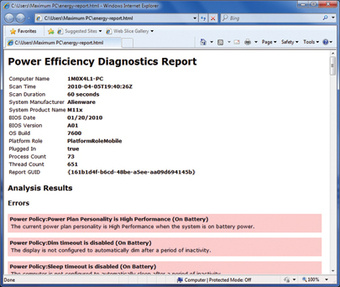
As a power user, you may be concerned with power consumption, making the command-line utility powercfg.exe a must-see. To create a report on your PC's energy appetite, press the Windows key and type cmd in the search box. Right-click cmd and select Run as Administrator. Now, select the box and type powercfg –energy at the command-line prompt, and hit Enter. Powercfg will run for about 60 seconds, then generate a report called energy-report.html in C:\Windows\system32. This report will notify you of anything in your computer that is keeping the CPU cycling, thus burning power and sucking notebook batteries dry. After you run the report, you'll likely find that USB devices never entered Suspend state. While you might think the power consumption of a USB key is pretty insignificant, if it prevents the CPU from cycling off, that device can really hit where it hurts-in your battery's nards.
Cling (Desperately) to Vista's Taskbar

 Let's start with the bad news: Windows 7 eliminates the option to use the classic grey Windows 2000–style Taskbar. You're also committed to the modern version of the Start Menu. But the good news is that you can still tweak the Taskbar to make it run like it did in Windows Vista, replacing the program icons with the names of each open app. Right-click the Taskbar and hit Properties. Check the "Use small icons" box and select "Combine when Taskbar is full" from the drop-down menu under Taskbar buttons. You still get the peek-view thumbnail feature of the Taskbar, and inactive programs remain as single icons, but open programs will display their full names.
Exile Programs to the System Tray
All active programs show up as icons on the Taskbar, whether you want them to or not. While this is useful for web browsing or word processing, your taskbar can get cluttered with icons you would normally expect to be hidden away, like those for Steam or a chat client. You can, however, keep active instances of these programs hidden away in the System Tray/Notification Area by right-clicking their shortcuts, navigating to the Compatibility tab, and selecting Windows Vista under the Compatibility Mode drop-down menu. Just be aware that this only works for programs that would previously hide away from the Taskbar in Vista.
Manage Your Jump Lists
 The Jump List, a list of shortcuts to files or tasks for a particular Start Menu or Taskbar item, is one of the most significant improvements in Windows 7. Each time you open a file or website, or run a task with a program that supports Jump Lists, Windows 7 stores the shortcut to the file, website, or task for reuse. Unlike Windows XP, however, Windows 7 doesn't group these shortcuts into a single location. Instead, it stores shortcuts for each program's files, websites, or tasks in a separate shortcut list-aka the Jump List. To see the Jump List for a program in the Start Menu, simply click the right-arrow icon. To see the Jump List for a program icon on the Taskbar, right-click the icon. Windows eventually removes items from the Jump List when it runs out of space, but you can override this. To make any Jump List item a permanent entry, highlight it and click the pushpin icon (reverse this process to unpin it). And if the idea of leaving an icon trail of all your recent history disturbs you, you can disable Jump Lists entirely: Right-click the Start Menu, choose Properties, and uncheck the two boxes under Privacy.

Organize Your Taskbar and System Tray

 The programs that you pin to your Taskbar can be moved around to any order you want, whether they're just shortcut icons or currently active applications. The Taskbar, if unlocked, can also be dragged to latch to the left, right, or even top of your desktop. As shown below, Windows 7 improves side-docked Taskbar support with better gradient rendering and shortcut support. It really works well if you're using a widescreen monitor. Just as the Taskbar icons can be rearranged at will, the icons in the System Tray (actually called the Notification Area) can be dragged and set to any order, as well. Hidden Icons can be dragged back into view, and you can hide icons by dragging them over the white triangle, and dropping them into the Hidden Icon well-much easier than working through the Notification Area Customization menu.
Accelerate Your Start Menu


 The Start Menu hasn't changed much from Vista, but there are some notable improvements. The behavior of the power button has been changed to Shut Down, as opposed to Hibernate, which was the asinine default in Vista. But you can also change the button default to do other actions. Right-click the Start Menu, and choose Properties. From the Power Button Action drop-down, you can choose a new default button behavior. If you hit the Customize button, you'll enter a world of opportunities that help you control what the Start Menu displays. Most options are turned off, but you may want some on, like the option to display recorded TV files, a feature that's new in Windows 7. Also be aware that Start Menu items should be set to "Display as a link" if you want them to open up Jump Lists.
Arrange Files by Type, Month, Artist, and Other Options

Windows Vista introduced the concept of using the Details folder view to group files by criteria such as name, date modified, type, size, and other options. These choices are still available in any folder by right-clicking inside the folder and selecting them from the options menu. But Window 7 does Vista one better with its new Libraries scheme, which enables you to view the contents of multiple file locations in a single logical folder. And as you'd expect, each Library comes correct with contextual file-arrangement options that vary according to what's being viewed. For example, in the Pictures library, you can choose from Day, Rating, Tag, and Month. For videos, maybe arranging by Length, as in our screenshot, is most relevant. You get the point.


 Pin Folders to Favorites and Start Menu
Explorer's Jump List shows your seven most frequently visited folders, but you can manually bookmark some favorites to the top of the list by pinning folder locations. Just right-click any folder-either on your desktop or from an open instance of Explorer-and drag that folder icon to the Explorer shortcut on the Taskbar. You'll see a message that reads "Pin to Windows Explorer" before you release the mouse button. The folder will appear under a Pinned section of the Jump List, and you can remove it by clicking the "Unpin from this list" icon on the right side of the panel. You can also right-click and drag a folder directly to the Start button to pin that folder to the general Start list.
Put an OS in Your Pocket
How to load Windows 7 onto a bootable USB key

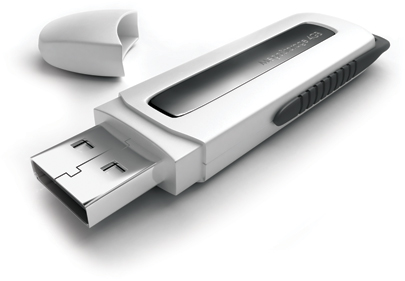
To complete your Windows 7 power-user experience, you may consider dropping the whole darn OS onto a USB drive. Whether you carry it around in your pocket or toss it in a desk drawer, it's a perfect boot disk for emergency installs-including those times when you're working with a netbook or some other computer that lacks an optical drive. Even better, your install times will be significantly reduced, thanks to your key's flash memory-we shaved off minutes from our total install time.
Here's how to create a schmancy-fancy boot key for either Windows 7 or Vista-but not for other oses, so please don't try! We've run a truncated version of this article in the magazine before, but because it was so incredibly popular-and so germane to this feature story-we've decided to share it again, this time with more detail and screens.


 1. Format Your USB Key


Plug in your USB key and back up any existing data stored on it. You'll need to format the key (thus erasing existing data) before you can make it a bootable device. We used an 8GB key, but a 4GB key will also work.

2. Partition that Key in CMD

 Open up a command prompt as an Administrator. You can do this by searching for cmd.exe in your Windows/System32 folder, right-clicking the executable, and selecting "Run as administrator." Alternatively, type CMD in the Start Menu search field and activate the command prompt using Ctrl + Shift + Enter


You should now be under C:\Windows\system32 (assuming your Windows partition is the C drive). Type diskpart in the command line to enter the Disk Partition command-line tool, which lets you format and create partitions on active disks. Now type list disk to reveal a list of all your active disks, each of which is associated with a number. Make a note of which one is your USB key, based on the capacity. In this screenshot, our USB drive is Disk 2.

3. Format Away (Command-Prompt Style)
It's now time to enter a load of commands to properly partition the key, and format for the NTFS (did you know this stands for "New Technology File System"?). In succession, enter the following-and type carefully, Jimbo!
Select Disk # (where # is the number of your USB disk. We typed Select Disk 2 for this job) Clean (this removes any existing partitions from the USB disk, including any hidden sectors) Create Partition Primary (creates a new primary partition with default parameters) Select Partition 1 (focuses operation on the newly created partition) Active (sets the partition to active, informing the disk firmware that this is a valid system partition)Format FS=NTFS (formats the partition with the NTFS file system. This may take several minutes to complete, depending on the size of your USB key) Assign (this gives the USB drive a Windows volume and next available drive letter, which you should write down. In our case, drive "L" was assigned) Exit (quits the diskpart tool)

 4. Copy Windows DVD to a Desktop Folder
 Insert the Windows 7 installation DVD into your drive, and view the files that it contains. Copy all of the files to a folder on your Desktop. We put the disc contents in a folder named Windows 7.


 5. Turn Your Key into a Bootable Device
Now, go back to your command prompt, running it as an Administrator. Using the CD command, navigate your way to the folder where you placed the Windows disk ISO files. Your command line path should look something like C:\Users\USERNAMEHERE\Desktop\Windows 7\ if you followed our lead on folder placement. Now type the following commands:

CD Boot (this gets you into the boot directory)
Bootsect.exe /nt60 L: (this assumes L is the drive letter assigned to your USB key from the previous step)
In case you're wondering, Bootsect infuses boot manager–compatible code into your USB key to make it a bootable device. Also be aware that if you're currently running 32-bit Windows Vista or 7, Bootsect will only work if you use the files from the 32-bit Windows 7 install disc. The Bootsect executable from the 64-bit version will not run in 32-bit Vista. Don't forget it!
6. Load the USB Key with Your Install Files

Copy all of the extracted ISO files into the USB drive. You don't need to do this from the command prompt. Just drag and drop the files from the Windows 7 folder into the USB drive using Windows Explorer. We also recommend copying your hardware drivers onto the same key so the installation wizard can find them.


Your USB key is now all ready to go! Plug it into your target system and make sure you enter the BIOS (typically by hitting F2 or F12) to temporarily change the boot order to allow booting from the USB key before your primary hard drive or optical drive. Now, when you plug the key into a machine, your system should automatically begin speedily downloading setup files off of the USB key and entering Windows 7 installation


Share

Twitter Delicious Facebook Digg Stumbleupon Favorites More